Virtual Chip Tuning in FS 25: How to Increase the Engine Power of Any Tractor (XML Editing)
Every player in Farming Simulator 25 has a favorite tractor. Maybe it's an old MTZ, a classic HTZ, or a stylish retro John Deere. But what do you do if you really like the look of the machine, but its base 80 horsepower is catastrophically insufficient to pull a modern 12-meter cultivator or a full trailer of grain uphill?
There is a way out! Today we will learn how to do virtual “chip tuning” by increasing the actual tractive power of the engine through editing the XML files of the modification.
The main rule of a modder: before any changes, always make a backup copy of the original .zip archive of the mod. As they say, better safe than sorry.
The Main Secret of Engines in Farming Simulator 25
Most beginners make the same mistake: they open the XML file, find the line hp="80" (horsepower), change it to hp="500", enter the game and see... that the tractor still doesn't move.
Why does this happen?
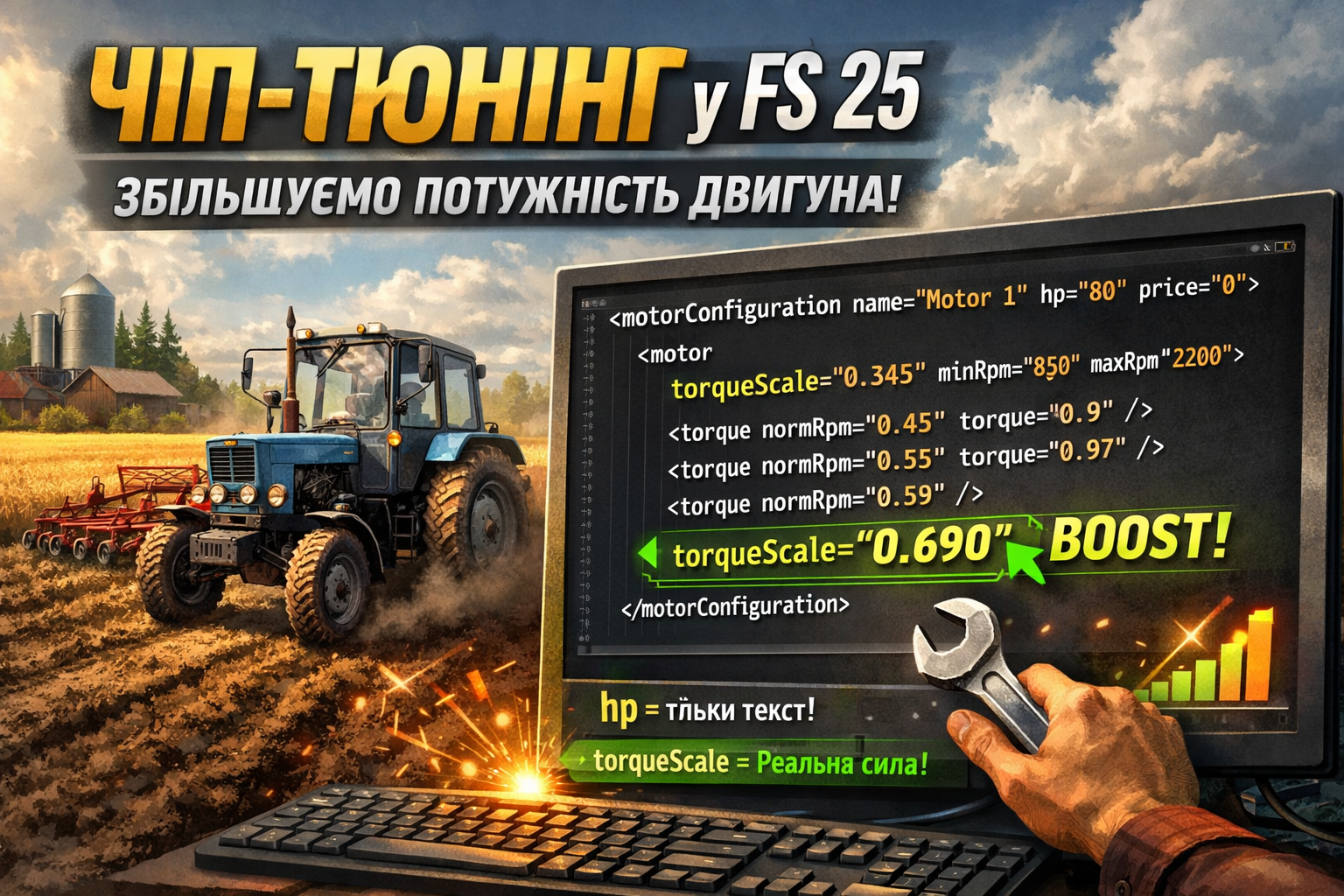
The hp parameter (horsepower) is responsible exclusively for the text displayed in the in-game shop. It does not affect physics. The real tractive force of the tractor in the game is calculated through torque and its multiplier. These are what we will change.
In simple terms: if you only change hp, it's just a pretty number in the shop. But if you change torqueScale, that's a real upgrade. This is not just dust in the eyes, but a real change in the behavior of the machine in the field.
Step-by-Step Guide: Increasing Power
Step 1: Unpacking the mod
- Create a separate folder on your desktop.
- Copy the
.ziparchive of the desired mod there. - Unpack the archive.
- Find the main XML file of the tractor, for example
MTZ_82.xml. - Open it in a convenient text editor, such as Notepad++.
Don't edit the mod right away haphazardly in the main folder, because later you might put a spoke in your own wheels. It's better to work calmly with a copy.
Step 2: Finding the engine parameters
Press Ctrl + F and enter in the search:
<motorized>Then find the block:
<motorConfigurations>This is where all the engines that can be selected when buying a tractor in the shop are listed.
If the mod has several engines, carefully watch which configuration you are editing. Otherwise, you might later rack your brain wondering why one engine changed in the shop but in the game the result is negligible.
Step 3: Editing the torque
Find the engine configuration you need. It might look something like this:
<motorConfiguration name="Motor 1" hp="80" price="0">
    <motor torqueScale="0.345" minRpm="850" maxRpm="2200" maxForwardSpeed="35" maxBackwardSpeed="15">
        <torque normRpm="0.45" torque="0.9"/>
        <torque normRpm="0.5" torque="0.97"/>
        <torque normRpm="0.59" torque="1"/>
        <torque normRpm="0.72" torque="1"/>
        <torque normRpm="0.86" torque="0.88"/>
        <torque normRpm="1" torque="0.72"/>
    </motor>
</motorConfiguration>
To increase power, you don't need to change every line with <torque normRpm...>. The game developers left us a brilliantly simple tool — the multiplier torqueScale.
In our example:
torqueScale="0.345"gives the tractor approximately 80 hp.
To double the power — to approximately 160 hp — simply multiply this number by 2:
torqueScale="0.690"If you want to make the tractor a real monster at 400 hp, you can set:
torqueScale="1.725"Calculation formula: the value of torqueScale is approximately equal to the horsepower divided by 232. This is not an absolute truth for every mod, but as a guideline it works very well.
The main thing here is not to act rashly. If you immediately set too high a value, an old tractor might turn into a rocket, and then the game balance will go to hell.
Step 4: Fixing the shop description
Now that we have physically added power to the tractor, we need the shop to show the correct power.
We return to the first line:
<motorConfiguration name="Motor 1" hp="80" price="0">And change the value hp="80" to the new power we calculated, for example:
<motorConfiguration name="Motor 1" hp="160" price="0">Now everything will be fair: both the number in the shop is correct and the tractor actually pulls better in the field.
Step 5: Repacking the mod
- Save the changes in the XML file.
- Select all files and folders of the unpacked mod.
- Click “Add to archive...”.
- Choose the ZIP format.
- It is advisable to use the “Normal” or “No compression” method.
- Move the new
.ziparchive to the folder:
Documents/My Games/FarmingSimulator2025/modsAfter that, enter the game, buy the upgraded tractor and test it with heavy equipment. Now your old “iron horse” will no longer seem weak.
Useful tips before testing
- Make changes gradually: first +20–30%, not x5 at once.
- Test the tractor with the same equipment that previously caused problems.
- If the machine still slips, the problem may be not only in the engine but also in weight or tires.
- Always keep the original archive so you can quickly revert changes.
It's better to go quietly than to sit later and wonder where exactly something went wrong.
Common beginner mistakes
- changing only
hpand not touchingtorqueScale; - editing the wrong XML file;
- forgetting to repack the mod into ZIP;
- archiving another nested folder instead of the mod files themselves;
- setting too high a value and breaking the balance of the machine;
- not making a backup copy.
In modding, very often the whole problem hides in a trifle. One wrong step — and you already have to go in circles looking for where the dog is buried.
Conclusion
Virtual chip tuning in FS 25 is one of the simplest and most effective ways to breathe new life into your favorite tractor. In short: the hp parameter is just a number for the shop, while the real power is hidden in torqueScale and the Torque curve.
So if you want your old MTZ, HTZ, or any other tractor to pull heavy equipment much more confidently, you don't need to reinvent the wheel — just properly adjust the XML. The main thing is to do everything wisely, not rush, and not overdo it.
And then your old good tractor will show that it still has gunpowder in its flask.
FAQ
Why doesn't changing hp in XML give real power?
Because the hp parameter is only responsible for the text in the shop. It does not affect the tractor's physics.
Which parameter actually affects engine traction?
The main parameter is torqueScale, as well as the <torque ... /> curve in the engine block.
How much is it safe to increase torqueScale?
It's best to raise it gradually — for example, by 20–50%, and then test the result in the game.
Do I need to change hp after editing torqueScale?
Yes, preferably. It won't affect the physics, but it will allow the shop to show the correct engine power.
What to do if the tractor became more powerful but still slips?
Maybe the problem is not only in the engine. Traction is also affected by the weight of the machine, tires, transmission settings, and grip on the ground.