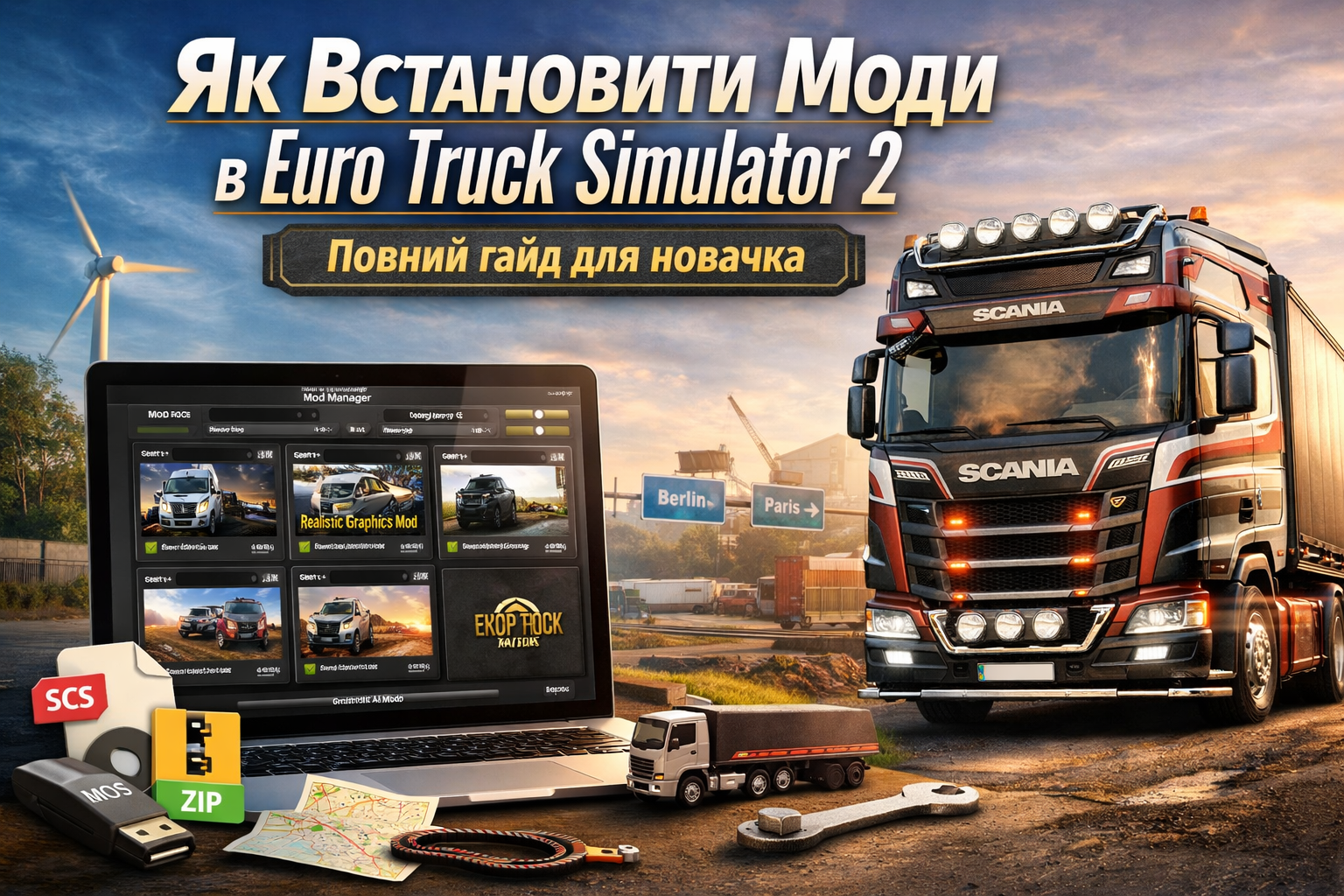
How to Install Mods in Euro Truck Simulator 2: A Complete Guide for Beginners
Want to add new trucks, maps, sounds, traffic, or graphics to Euro Truck Simulator 2, but afraid of breaking something? No worries — we’ll break it down in simple terms. In this guide, I’ll explain how to properly install mods in ETS2 so you don’t mess things up, turn the game into a jumbled mess, and spend half a day searching for where the dog is buried.
At first glance, it may seem that mods are something complicated. But if you follow the steps, don’t rush into things, and do everything with a cool head, everything will fall into place. ETS2 is quite friendly to mods; the main thing is to know the basic rules.
What Types of Mods Are There in ETS2
Before installation, it’s important to understand that mods in Euro Truck Simulator 2 come in different types, and not all are treated the same. Most often, players use:
- trucks — new tractors or modified standard models;
- maps — new regions, roads, cities, countries;
- traffic — more vehicles, different transport behavior;
- graphics — weather, lighting, sky, colors;
- sounds — new engine sounds, rain, ambient sounds;
- trailers and cargo — new types of transport and trailers;
- minor improvements — interface, physics, accessories, economy.
And here it’s important to remember one thing: the larger the mod, the more carefully you need to follow the author’s instructions. If a small sound mod can be installed without nerves, larger maps or complex packs require order and patience.
Two Main Ways to Install Mods in ETS2
In ETS2, there are two most popular ways to install a mod:
- via Steam Workshop;
- manually through the mod folder.
If you are just starting out, Steam Workshop is the easiest option. Everything works almost like a charm: subscribe to the mod, launch the game, activate it in the mod manager — and you’re done.
Manual installation is a bit more complex, but it offers more freedom. It’s most often used for larger mods, maps, packs, and custom files that are not available in the Workshop.
How to Install Mods via Steam Workshop
This is the most convenient way for a beginner. There’s no need to rummage through archives, look for the right folders, or guess where to put what.
Step by Step
- Open Steam.
- Go to the Euro Truck Simulator 2 Workshop page.
- Find a mod that suits you.
- Click Subscribe.
- Wait for Steam to download the mod.
- Launch the game.
- Go to Mod Manager.
- Find the mod in the list and activate it.
- Confirm the changes.
- Load your profile and check if everything works.
And that’s all the magic. But even here, don’t relax: if you throw on 20 mods at once, you can easily get confused about which one is causing the problem.
Advantages of Steam Workshop
- quick installation;
- easy mod updates;
- no need to manually search for files;
- easier to disable and test mods.
In short, for a start, this is an option that doesn’t require any complicated maneuvers.
How to Install Mods Manually through the Mod Folder
This is where classic modding begins. But don’t worry — there’s nothing cosmic here.
By default, mods for ETS2 are usually placed here:
Documents\Euro Truck Simulator 2\mod
Note: the folder is called mod, not mods. This is a small detail, but many stumble over such nuances.
Also, sometimes the mod folder doesn’t appear until you launch the game at least once. So if you installed ETS2 and immediately went looking for the folder — don’t be surprised if it’s not there yet.
Step by Step Manual Installation
- Download the mod from a trusted source.
- Check what format it came in:
.scs,.zip,.rar, or.7z. - If it’s
.raror.7z, unpack the archive. - Find the main mod file inside — it’s often
.scsor a ready.zip. - Copy this file to the folder
Documents\Euro Truck Simulator 2\mod. - Launch the game.
- Go to Mod Manager.
- Activate the mod.
- Confirm the changes.
- Load your profile and check the result.
The main thing here is not to throw everything into the mod folder indiscriminately. If there are images, readme files, instructions, or unnecessary nested folders in the archive, don’t dump them all in one pile. Otherwise, you can complicate your life unnecessarily.
Which Files Does ETS2 Read Normally
ETS2 most commonly works with the following mod formats:
- .scs — this is the most typical mod format for the game;
- .zip — can also be read by the game if it’s a properly prepared package;
- folders inside mod — usually not needed for the average user and often simply ignored by the game.
A simple rule for beginners is: if you see an .scs file — that’s the one to put in the mod folder. If the author hasn’t specified otherwise, don’t engage in self-interpretation.
Here, the principle is very appropriate: measure seven times, cut once. It’s better to read the instructions again than to wonder later why the mod doesn’t show up in the game.
How to Activate a Mod in the Game
Many beginners think that it’s enough just to throw the file into the mod folder — and everything will work. But that’s only half the job.
To actually get the mod working, you need to activate it in the Mod Manager:
- Launch ETS2.
- On the profile selection screen, find Mod Manager.
- Find the required mod in the list.
- Activate it by double-clicking or using the add button.
- Confirm the changes.
- Then enter your profile and test it.
So the scheme is very simple: drop the file → activate in the manager → confirm → enter the game.
Why Mod Order Matters
This is the moment where many people get burned. In ETS2, the order of mods in the Mod Manager really matters. Especially if they are maps, weather, physics, traffic, or large packs.
If mods conflict with each other, one can override another. Because of this, you might experience:
- the map doesn’t load;
- the game crashes;
- some roads are missing;
- textures disappear;
- traffic or weather doesn’t work;
- mods are in the list, but there’s no result in the game.
And here, without any unnecessary drama: the correct load order is half the success. If the mod author states that their file should be higher or lower in the list — do it. Don’t go against the flow, or else modding will go awry.
Common Mistakes Made by Beginners
Here’s a list of the most typical mistakes that cause mods not to work:
- placing the file in the wrong folder;
- creating a mods folder instead of mod;
- forgetting to activate the mod in the game;
- dumping an archive into the mod folder instead of the required file from inside;
- installing dozens of mods at once without checking;
- ignoring load order;
- not checking the compatibility of old mods after updating the game;
- mixing Workshop mods and manual mods without understanding what each one is responsible for.
Sometimes the whole problem is so trivial that it’s almost funny: one wrong folder, one incorrect file — and it seems like the game is “broken.” But in reality, everything is right on the surface.
What to Do If the Mod Doesn’t Appear in Mod Manager
If you’ve done everything but still can’t see the mod, check this:
- Is the file definitely in
Documents\Euro Truck Simulator 2\mod? - Is it indeed a
.scsfile or the correct.zip, not just an archive with a bunch of folders? - Is the mod not inside another nested folder?
- Has the game been launched at least once after installation?
- Is the mod outdated for the new version of ETS2?
Here lies the answer in most cases. Don’t panic right away — it’s better to calmly go through this list one by one.
Do You Need to Unpack the .scs File?
In most cases — no. If you downloaded a mod in .scs format, you usually don’t need to touch it. Just drop it into the mod folder and activate it in the game.
You should only unpack it if the mod initially came in .rar or .7z, and inside, there’s the .scs or several .scs files.
A simple rule: don’t touch what already works. Otherwise, you might stir up a hornet’s nest unnecessarily.
How to Properly Install Large Maps and Packs
A separate story is large map combos or big mod packs. Here, you shouldn’t just wing it.
For such mods, you almost always need to:
- carefully read the author’s instructions;
- install several files in a specific order;
- follow the correct order in Mod Manager;
- have a compatible version of the game;
- not mix incompatible maps together.
To put it simply: large maps are no longer just “drop the file and forget”. Here, you need to proceed without haste, because one wrong step can lead to a road abruptly ending in the middle of the map, or the game crashing unexpectedly.
What to Do After Updating ETS2
After major game updates, some mods may stop working. And this is completely normal. The game isn’t always to blame — sometimes the mod just hasn’t been updated yet.
If you start having problems after a patch, do the following:
- temporarily disable old mods;
- launch the game without them;
- check which mods have already been adapted for the new version;
- turn them back on one by one;
- see after which one the problems start.
Here, haste is a bad advisor. It’s better to reintroduce mods gradually than to sit and wonder which file brought the game to its knees.
The Best Strategy for Beginners
If you are just starting out, here’s the smartest scenario:
- Install 1–2 simple mods via Steam Workshop.
- Learn to activate and deactivate them through Mod Manager.
- Then try one manual mod through the
modfolder. - Don’t install large maps and massive packs right away.
- Test everything one at a time.
It’s like on the road: first, you learn to hold the lane confidently, and then you’re off on long hauls. If you start with the simple stuff, modding ETS2 won’t seem scary at all.
Conclusion
Installing mods in Euro Truck Simulator 2 is not difficult at all if you don’t do everything randomly. Steam Workshop is suitable for those who want a quick and easy solution. Manual installation through the mod folder offers more freedom but requires attention.
The main thing is to remember a few basic things: the correct folder, the correct file, activation through Mod Manager, and a proper mod order. If you stick to this course, everything will go smoothly, rather than going awry.
FAQ
Where to put mods in ETS2?
Usually, mods should be placed in the folder Documents\Euro Truck Simulator 2\mod.
Why doesn’t the mod appear in the game?
The most common reasons are the wrong folder, the wrong file, a nested folder, or the mod hasn’t been activated in the Mod Manager yet.
What’s better for a beginner: Steam Workshop or manual installation?
For starters, Steam Workshop is better because it’s simpler and safer. Once you understand the basics, you can switch to manual installation.
Do I need to unpack the .scs file?
Usually no. If it’s a ready .scs, just place it in the mod folder.
Why is mod order so important?
Because some mods override others. This is especially true for maps, graphics, traffic, physics, and large packs.
What to do after updating the game if mods are broken?
Temporarily disable old mods, check compatibility, and reintroduce them one by one to quickly find the problematic file.